> ## Documentation Index
> Fetch the complete documentation index at: https://dodopayments-mintlify-external-integration-datafast-autosen.mintlify.site/llms.txt
> Use this file to discover all available pages before exploring further.
# Customer Portal
> Empower customers to self-serve and manage their subscriptions, billing history, license keys, and profile securely.
The Customer Portal is a secure, hosted area where your customers can manage subscriptions, view invoices and access license keys details—without contacting support.
Programmatically create secure, time‑bound portal sessions.
Manage recurring plans, upgrades, downgrades, and add‑ons.
 ## What Is the Customer Portal?
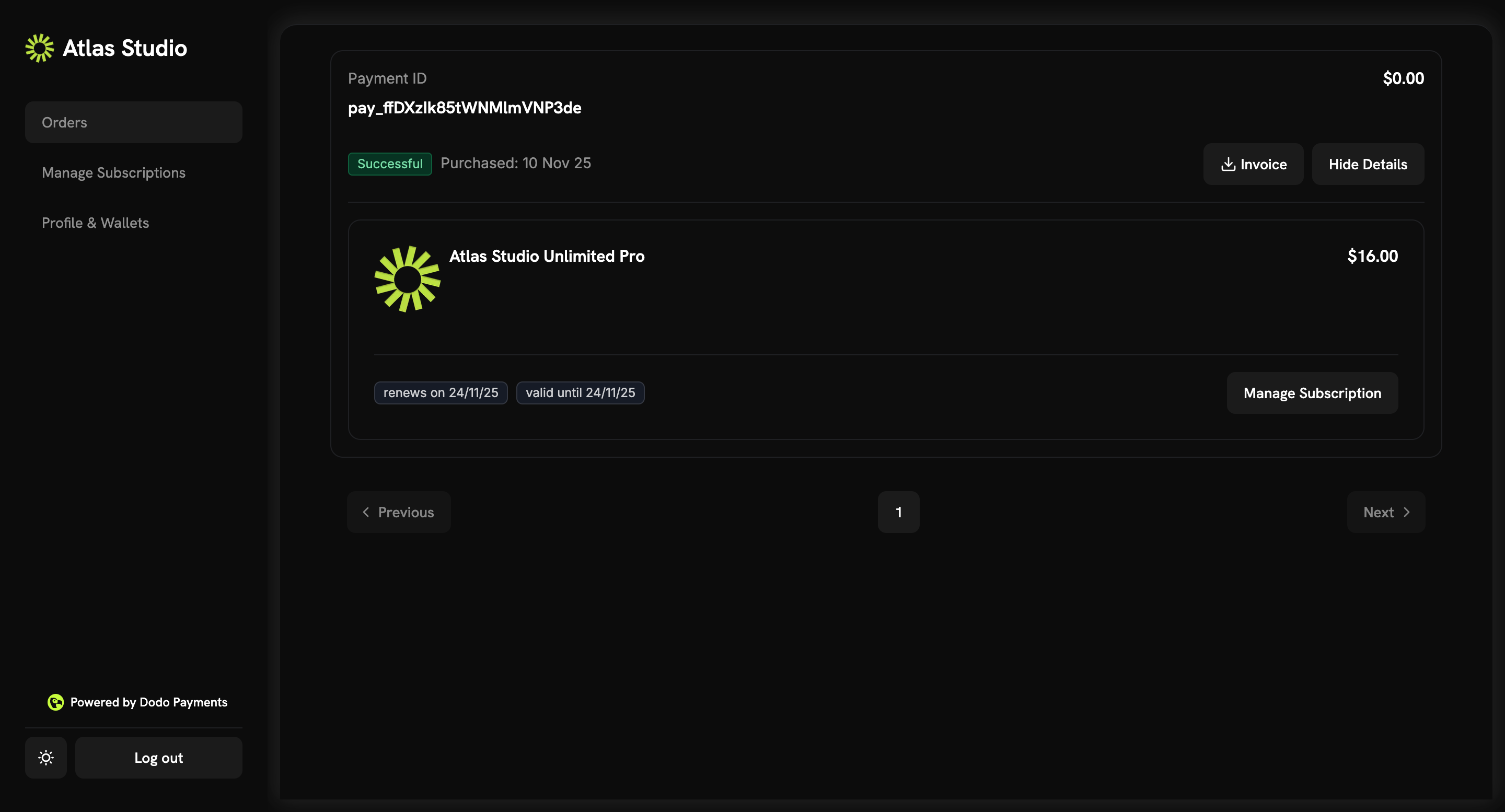
The portal provides a trusted, branded self‑service experience for customers to:
* **Access billing history**: View invoices and download.
* **Manage subscriptions**: Cancel a subscription.
* **Update payment methods**: Change payment methods for active subscriptions or reactivate subscriptions on hold.
* **Retrieve license keys**: Access all keys tied to purchases
## Key Benefits
* **Lower support volume**: Customers resolve common billing requests on their own
* **Faster time‑to‑value**: Immediate access to invoices and keys
* **Reduced churn risk**: Clear visibility into renewals and plan details
* **Secure by design**: Tokenized access with expiring links
## Access Methods
Customers can reach the portal using either a static link or a one‑time dynamic link.
### Static link (email‑based access)
Customers can request portal access by entering their email at a static link that never expires.
The static portal link format varies by environment:
**Test Mode** (for testing and development):
```bash theme={null}
https://test.customer.dodopayments.com/login/{business_id}
```
**Live Mode** (for production with real transactions):
```bash theme={null}
https://customer.dodopayments.com/login/{business_id}
```
Replace `{business_id}` with your actual business identifier, then share the appropriate link with customers so they can enter their email and receive secure access to the portal.
## What Is the Customer Portal?
The portal provides a trusted, branded self‑service experience for customers to:
* **Access billing history**: View invoices and download.
* **Manage subscriptions**: Cancel a subscription.
* **Update payment methods**: Change payment methods for active subscriptions or reactivate subscriptions on hold.
* **Retrieve license keys**: Access all keys tied to purchases
## Key Benefits
* **Lower support volume**: Customers resolve common billing requests on their own
* **Faster time‑to‑value**: Immediate access to invoices and keys
* **Reduced churn risk**: Clear visibility into renewals and plan details
* **Secure by design**: Tokenized access with expiring links
## Access Methods
Customers can reach the portal using either a static link or a one‑time dynamic link.
### Static link (email‑based access)
Customers can request portal access by entering their email at a static link that never expires.
The static portal link format varies by environment:
**Test Mode** (for testing and development):
```bash theme={null}
https://test.customer.dodopayments.com/login/{business_id}
```
**Live Mode** (for production with real transactions):
```bash theme={null}
https://customer.dodopayments.com/login/{business_id}
```
Replace `{business_id}` with your actual business identifier, then share the appropriate link with customers so they can enter their email and receive secure access to the portal.
 1. Go to Sales → Customer.
2. Click Share invite.
3. Copy the Static link and share it with your customer.
1. Open the static link.
2. Enter the email used at purchase.
3. Receive a secure login link to access the portal.
Existing customers are recognized automatically.
### Dynamic link (magic link)
A personalized, one‑time magic link that sends customers directly into the portal. The link expires in 24 hours.
Dynamic links expire after 24 hours. If it expires, generate and send a new link.
1. Go to Sales → Customer.
2. Click Share invite.
3. Copy the Static link and share it with your customer.
1. Open the static link.
2. Enter the email used at purchase.
3. Receive a secure login link to access the portal.
Existing customers are recognized automatically.
### Dynamic link (magic link)
A personalized, one‑time magic link that sends customers directly into the portal. The link expires in 24 hours.
Dynamic links expire after 24 hours. If it expires, generate and send a new link.
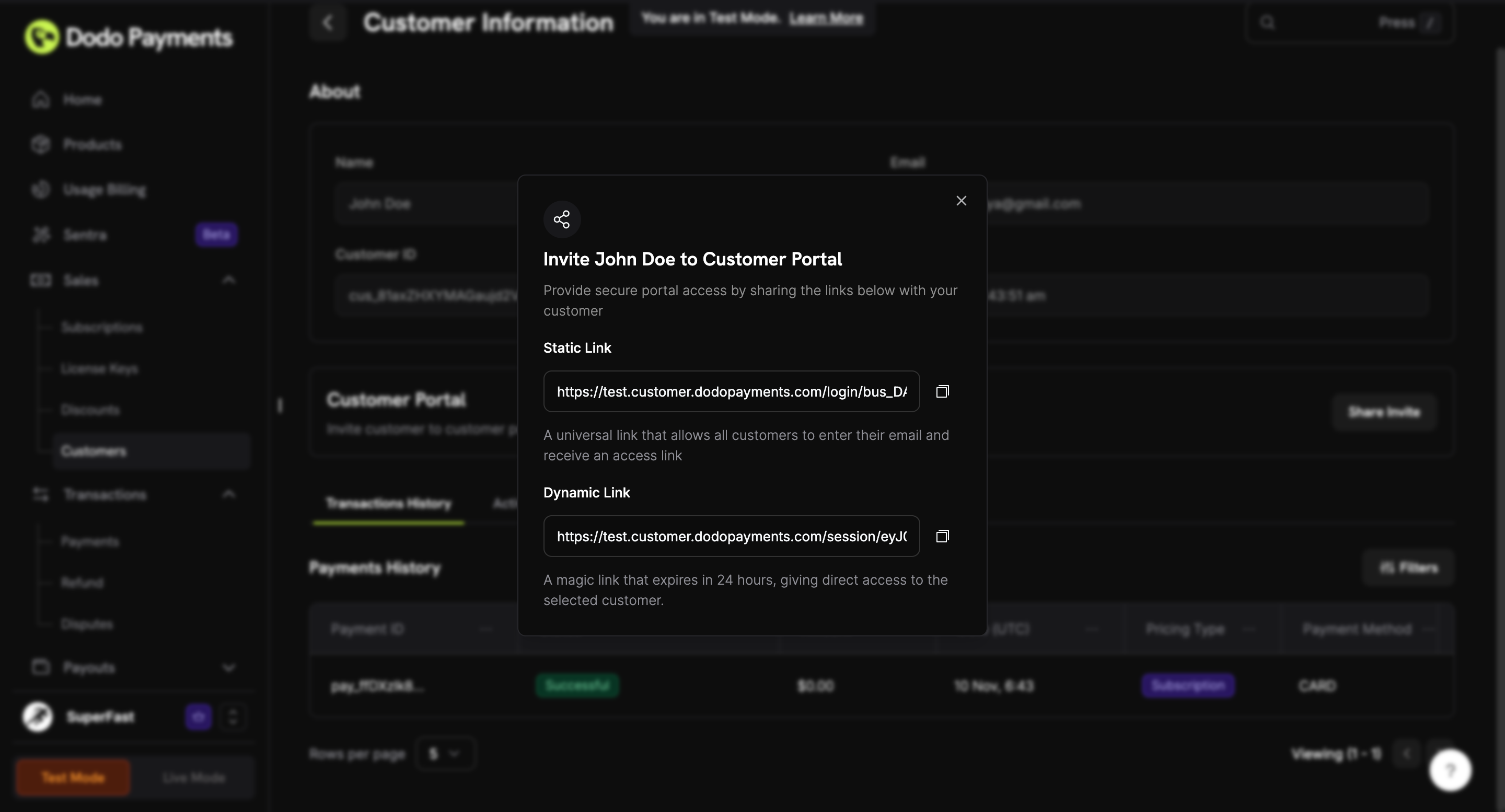 1. Go to Sales → Customer.
2. Click Share invite.
3. Copy the Dynamic link and share it with your customer.
1. Open the dynamic link.
2. Access the Customer Portal directly without entering an email.
## Portal Features
View all transactions and invoice details. Download PDFs of every invoice from your account.
Review active and past subscriptions, including renewal dates. Cancel any plan anytime.
Update payment methods for subscriptions. Reactivate subscriptions on hold by updating payment method to clear dues.
View or update your name, email, and phone number directly in your profile settings.
## Updating Payment Methods
Customers can update their payment methods directly from the Customer Portal. This feature is especially important for reactivating subscriptions that have been placed on hold due to failed payments.
### Viewing Current Payment Method
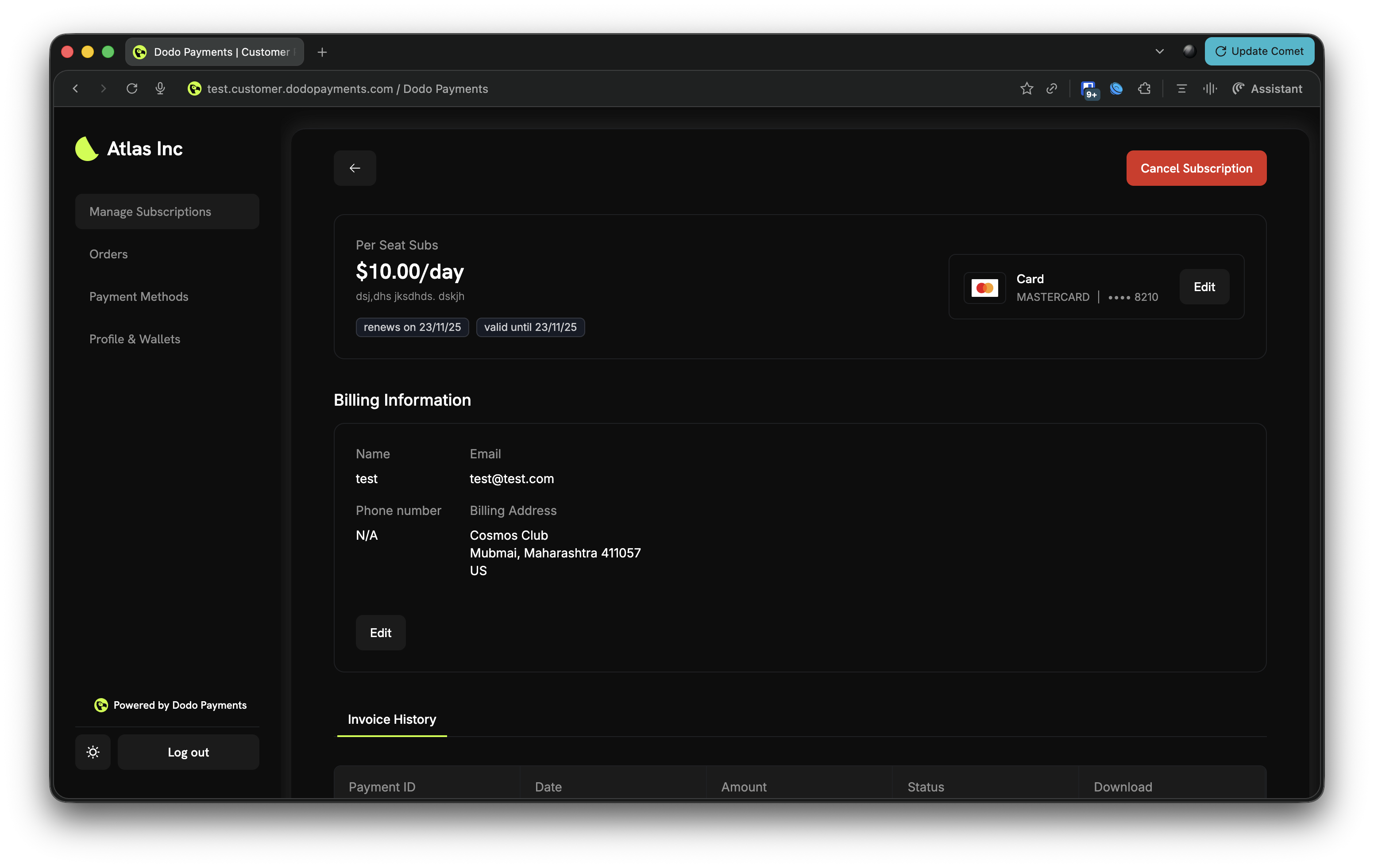
From the subscription management page, customers can see their current payment method displayed alongside subscription details. The payment method section shows the card type, last four digits, and an "Edit" button to update it.
1. Go to Sales → Customer.
2. Click Share invite.
3. Copy the Dynamic link and share it with your customer.
1. Open the dynamic link.
2. Access the Customer Portal directly without entering an email.
## Portal Features
View all transactions and invoice details. Download PDFs of every invoice from your account.
Review active and past subscriptions, including renewal dates. Cancel any plan anytime.
Update payment methods for subscriptions. Reactivate subscriptions on hold by updating payment method to clear dues.
View or update your name, email, and phone number directly in your profile settings.
## Updating Payment Methods
Customers can update their payment methods directly from the Customer Portal. This feature is especially important for reactivating subscriptions that have been placed on hold due to failed payments.
### Viewing Current Payment Method
From the subscription management page, customers can see their current payment method displayed alongside subscription details. The payment method section shows the card type, last four digits, and an "Edit" button to update it.
 ### Updating Payment Method
When customers click "Edit" on the payment method section, they can:
1. **Select an existing payment method**: Choose from previously saved payment methods
### Updating Payment Method
When customers click "Edit" on the payment method section, they can:
1. **Select an existing payment method**: Choose from previously saved payment methods
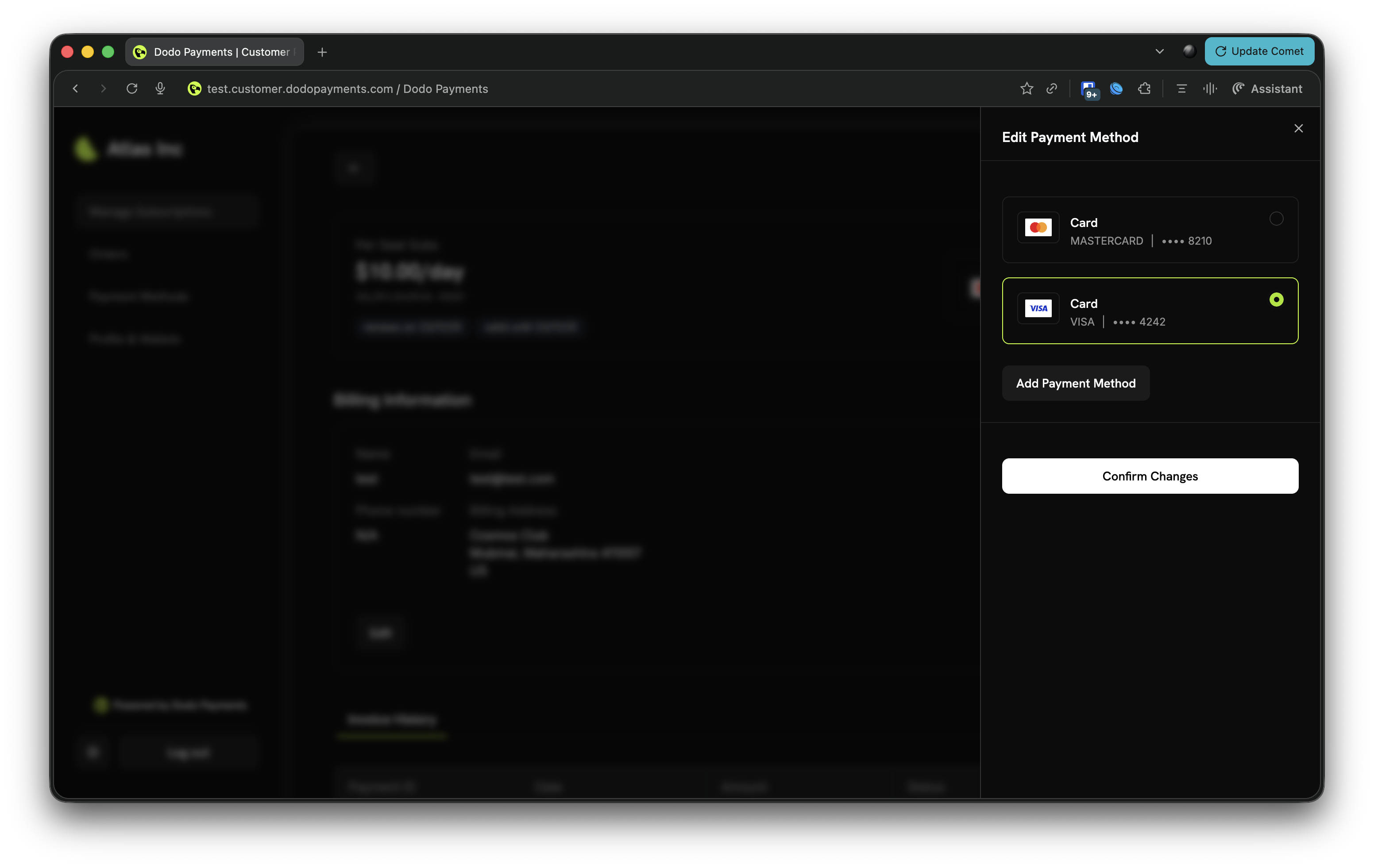 2. **Add a new payment method**: Enter new card details securely
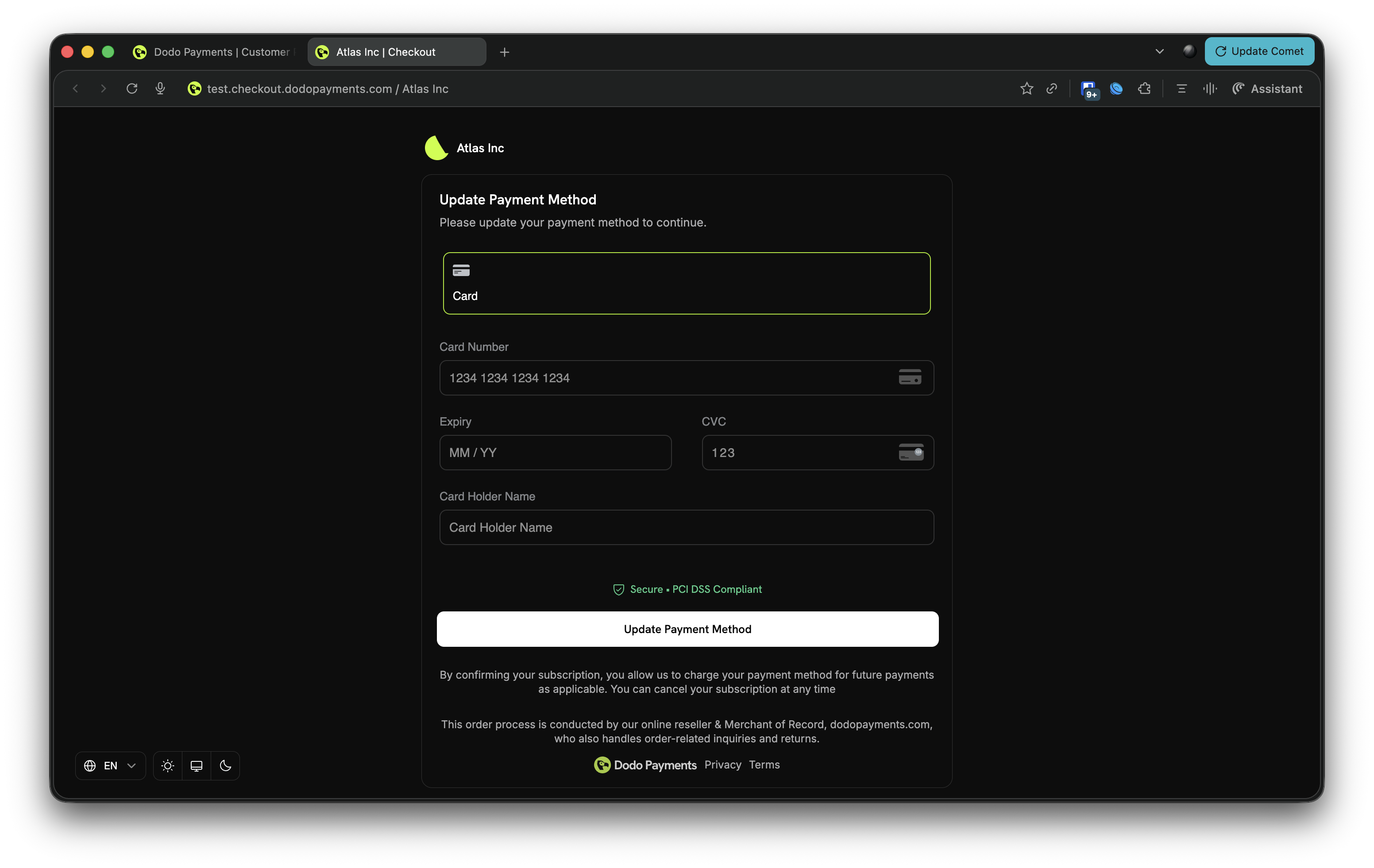 ### Reactivating Subscriptions on Hold
When a subscription is placed on `on_hold` state due to a failed payment, customers must update their payment method to reactivate it. The update process automatically:
1. **Creates a charge** for remaining dues
2. **Generates an invoice** for the charge
3. **Processes the payment** using the new payment method
4. **Reactivates the subscription** to `active` state upon successful payment
Subscriptions in `on_hold` state will not renew automatically. Customers must update their payment method to clear dues and reactivate the subscription.
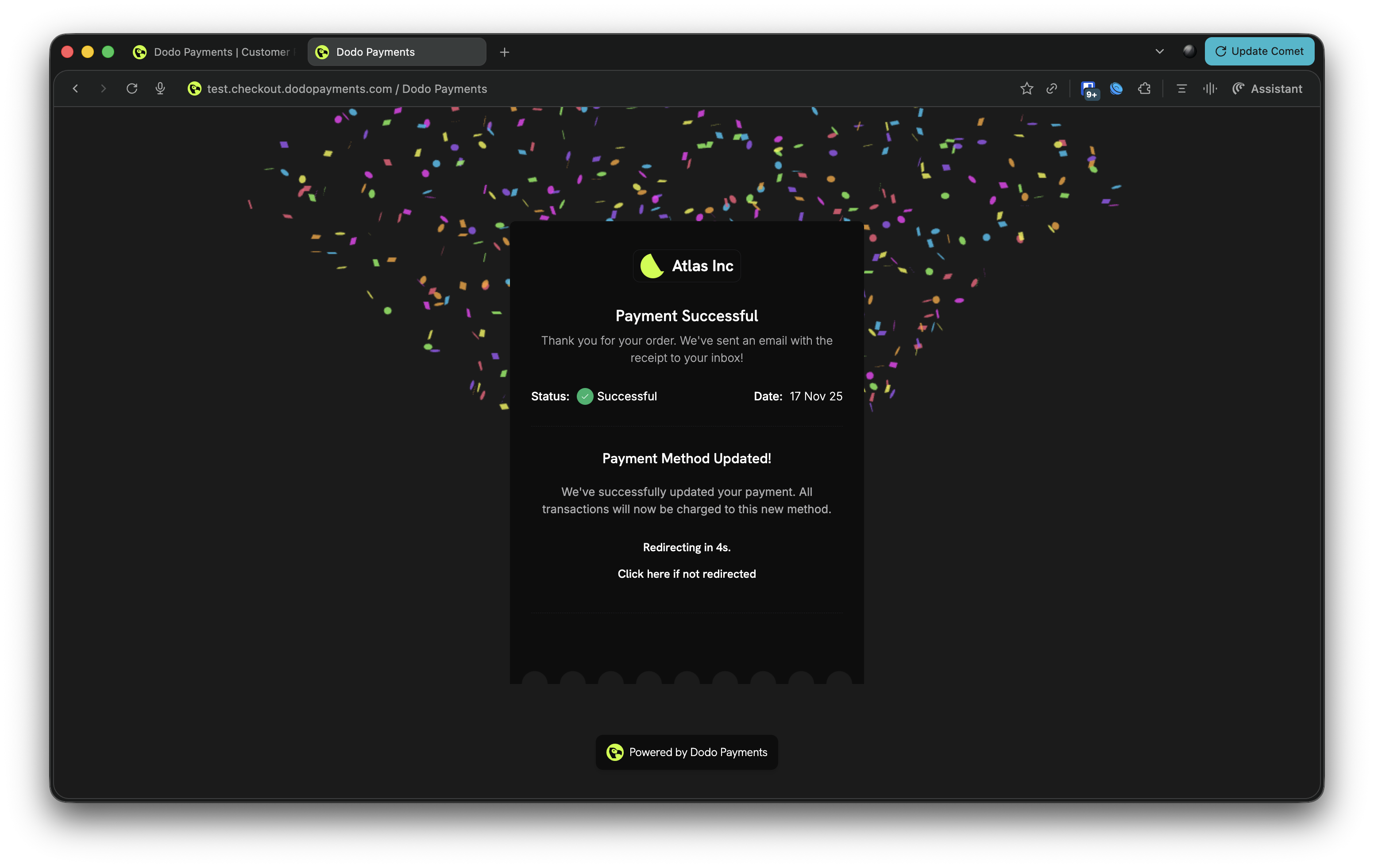
After successfully updating the payment method for an `on_hold` subscription, customers will see a confirmation page and receive email notifications about the successful payment and subscription reactivation.
### Reactivating Subscriptions on Hold
When a subscription is placed on `on_hold` state due to a failed payment, customers must update their payment method to reactivate it. The update process automatically:
1. **Creates a charge** for remaining dues
2. **Generates an invoice** for the charge
3. **Processes the payment** using the new payment method
4. **Reactivates the subscription** to `active` state upon successful payment
Subscriptions in `on_hold` state will not renew automatically. Customers must update their payment method to clear dues and reactivate the subscription.
After successfully updating the payment method for an `on_hold` subscription, customers will see a confirmation page and receive email notifications about the successful payment and subscription reactivation.
 ### Payment Method Update Flow
Navigate to the subscription management page in the Customer Portal to view subscription details and current payment method.
Click the "Edit" button next to the payment method section to open the payment method update interface.
Choose an existing saved payment method or add a new one by entering card details securely.
Click "Confirm Changes" to update the payment method. For `on_hold` subscriptions, this will automatically create a charge for remaining dues.
If the subscription is on hold, customers will be redirected to complete the payment for remaining dues. Upon successful payment, the subscription is automatically reactivated.
Customers receive confirmation that the payment method has been updated and, if applicable, that the subscription has been reactivated.
## Integration Examples
Create a time‑bound Customer Portal session for a specific customer via API, then redirect the user to the session URL.
```typescript Node.js theme={null}
const session = await client.customers.customerPortal.create('cus_123');
// Redirect the user to the hosted Customer Portal
window.location.href = session.link;
```
## Troubleshooting
* **Link expired**: Generate and send a new dynamic link.
* **Email not recognized**: Ask the customer to use the email associated with their purchase
* **Subscription on hold**: If a subscription is on hold, customers must update their payment method through the portal to clear dues and reactivate the subscription. The update process will automatically charge for remaining dues.
* **Payment method update failed**: If payment fails during the update process for an `on_hold` subscription, the subscription will remain on hold. Customers can try again with a different payment method.
### Payment Method Update Flow
Navigate to the subscription management page in the Customer Portal to view subscription details and current payment method.
Click the "Edit" button next to the payment method section to open the payment method update interface.
Choose an existing saved payment method or add a new one by entering card details securely.
Click "Confirm Changes" to update the payment method. For `on_hold` subscriptions, this will automatically create a charge for remaining dues.
If the subscription is on hold, customers will be redirected to complete the payment for remaining dues. Upon successful payment, the subscription is automatically reactivated.
Customers receive confirmation that the payment method has been updated and, if applicable, that the subscription has been reactivated.
## Integration Examples
Create a time‑bound Customer Portal session for a specific customer via API, then redirect the user to the session URL.
```typescript Node.js theme={null}
const session = await client.customers.customerPortal.create('cus_123');
// Redirect the user to the hosted Customer Portal
window.location.href = session.link;
```
## Troubleshooting
* **Link expired**: Generate and send a new dynamic link.
* **Email not recognized**: Ask the customer to use the email associated with their purchase
* **Subscription on hold**: If a subscription is on hold, customers must update their payment method through the portal to clear dues and reactivate the subscription. The update process will automatically charge for remaining dues.
* **Payment method update failed**: If payment fails during the update process for an `on_hold` subscription, the subscription will remain on hold. Customers can try again with a different payment method.