> ## Documentation Index
> Fetch the complete documentation index at: https://dodopayments-mintlify-external-integration-datafast-autosen.mintlify.site/llms.txt
> Use this file to discover all available pages before exploring further.
# Payouts
> Consolidate your eligible earnings and manage your payout threshold directly from the dashboard.
## Introduction
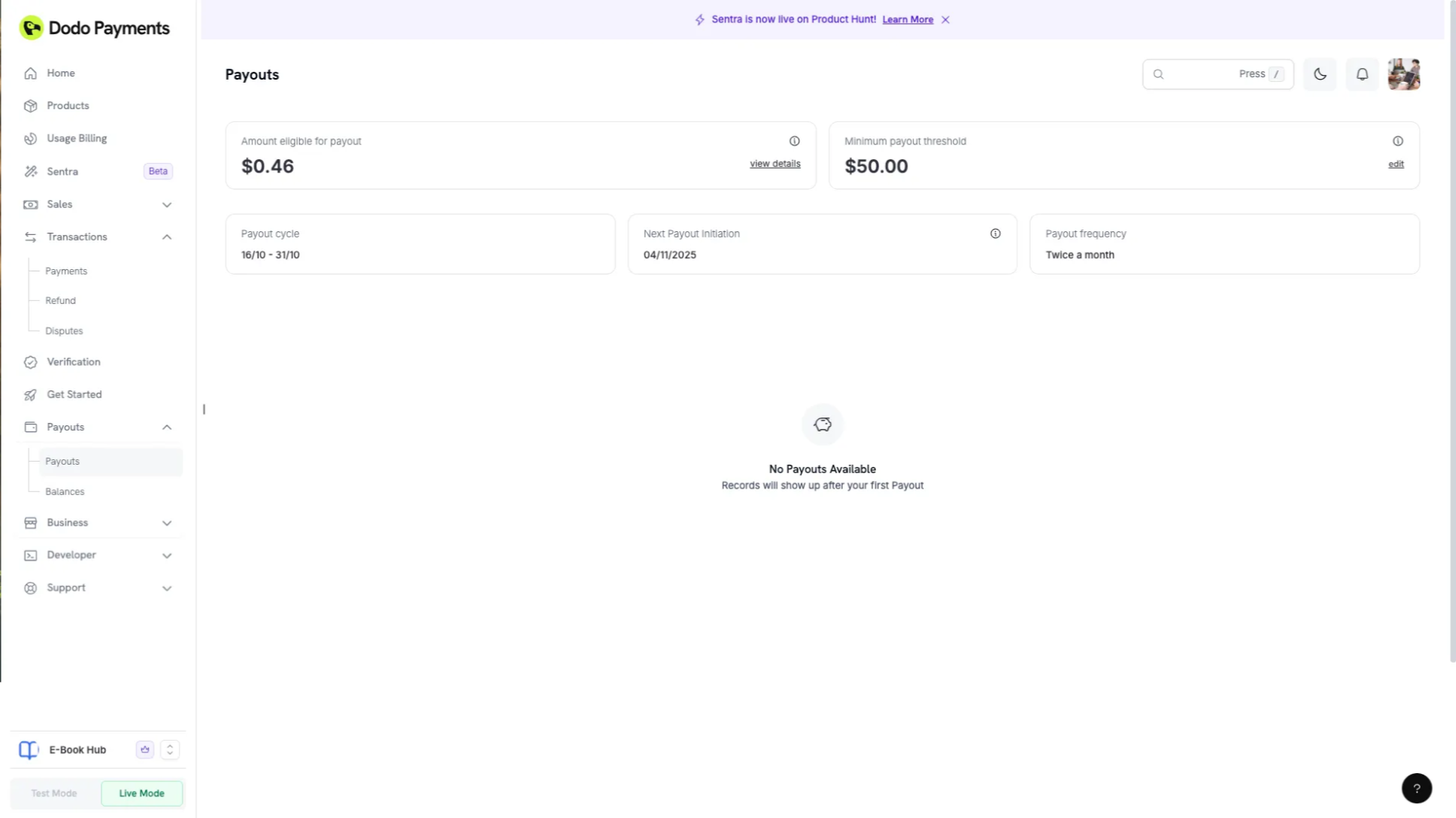
The **Payouts Section** consolidates all eligible earnings that can be disbursed in the next payout cycle. It provides transparency on the net available balance after accounting for all fees, refunds, and taxes.
 ## Key Features
* Displays the total balance eligible for payout in the upcoming cycle in USD
* Automatically applies FX conversion for non-USD currencies
* Lets businesses **set or modify their payout threshold** directly from the wallet settings
The displayed amount is **for reference only**. Final payout amounts may vary based on the actual exchange rate at the time of transfer.
## Payout Cycles
We support the following payout cycles:
**Billing Period 1:** 1st to 15th of the month\
**Payout Date 1:** 18th of the same month
**Billing Period 2:** 16th to the end of the month\
**Payout Date 2:** 4th of the following month
**Billing Period 1:** 1st to 7th\
**Payout Date 1:** 11th of the same month
**Billing Period 2:** 8th to 14th\
**Payout Date 2:** 18th of the same month
**Billing Period 3:** 15th to 21st\
**Payout Date 3:** 25th of the same month
**Billing Period 4:** 22nd to the end of the month\
**Payout Date 4:** 4th of the following month
**Billing Period:** 1st to the end of the month\
**Payout Date:** 11th of the following month
**Note:**
* Payouts will only be initiated if all verifications are successful and Payout Threshold is crossed in the billing period.
* The default payout cycle for all businesses is **bi-monthly**.
* Businesses with higher transaction volumes may request **weekly** payouts by contacting [support@dodopayments.com](mailto:support@dodopayments.com).
* Certain high-risk businesses may be placed on a **monthly** payout cycle at our discretion.
## Payout Processing and Bank Timelines
1. The dates provided above are the **initiation dates** for payouts.
2. It typically takes **1-2 business days** for the amount to appear in your bank account.
3. Delays may occur if payout processing dates fall on weekends or bank holidays.
## Minimum Payout Threshold
| Currency | Minimum Threshold |
| -------- | ----------------- |
| USD | \$50 |
| INR | ₹1,000 |
If your balance does not meet the threshold, it will carry forward to the next payout cycle.
## Flexible Minimum Payout Threshold
You can customize the balance that must build up in your USD wallet before Dodo Payments triggers a payout.
**Configuration:**
* **Allowed values:** \$50 or any higher amount
* **Effective from:** Your current payout cycle
* **Note:** Payouts already scheduled (if entry is created in the payout table) remain unchanged
### How to Edit Your Threshold
## Key Features
* Displays the total balance eligible for payout in the upcoming cycle in USD
* Automatically applies FX conversion for non-USD currencies
* Lets businesses **set or modify their payout threshold** directly from the wallet settings
The displayed amount is **for reference only**. Final payout amounts may vary based on the actual exchange rate at the time of transfer.
## Payout Cycles
We support the following payout cycles:
**Billing Period 1:** 1st to 15th of the month\
**Payout Date 1:** 18th of the same month
**Billing Period 2:** 16th to the end of the month\
**Payout Date 2:** 4th of the following month
**Billing Period 1:** 1st to 7th\
**Payout Date 1:** 11th of the same month
**Billing Period 2:** 8th to 14th\
**Payout Date 2:** 18th of the same month
**Billing Period 3:** 15th to 21st\
**Payout Date 3:** 25th of the same month
**Billing Period 4:** 22nd to the end of the month\
**Payout Date 4:** 4th of the following month
**Billing Period:** 1st to the end of the month\
**Payout Date:** 11th of the following month
**Note:**
* Payouts will only be initiated if all verifications are successful and Payout Threshold is crossed in the billing period.
* The default payout cycle for all businesses is **bi-monthly**.
* Businesses with higher transaction volumes may request **weekly** payouts by contacting [support@dodopayments.com](mailto:support@dodopayments.com).
* Certain high-risk businesses may be placed on a **monthly** payout cycle at our discretion.
## Payout Processing and Bank Timelines
1. The dates provided above are the **initiation dates** for payouts.
2. It typically takes **1-2 business days** for the amount to appear in your bank account.
3. Delays may occur if payout processing dates fall on weekends or bank holidays.
## Minimum Payout Threshold
| Currency | Minimum Threshold |
| -------- | ----------------- |
| USD | \$50 |
| INR | ₹1,000 |
If your balance does not meet the threshold, it will carry forward to the next payout cycle.
## Flexible Minimum Payout Threshold
You can customize the balance that must build up in your USD wallet before Dodo Payments triggers a payout.
**Configuration:**
* **Allowed values:** \$50 or any higher amount
* **Effective from:** Your current payout cycle
* **Note:** Payouts already scheduled (if entry is created in the payout table) remain unchanged
### How to Edit Your Threshold
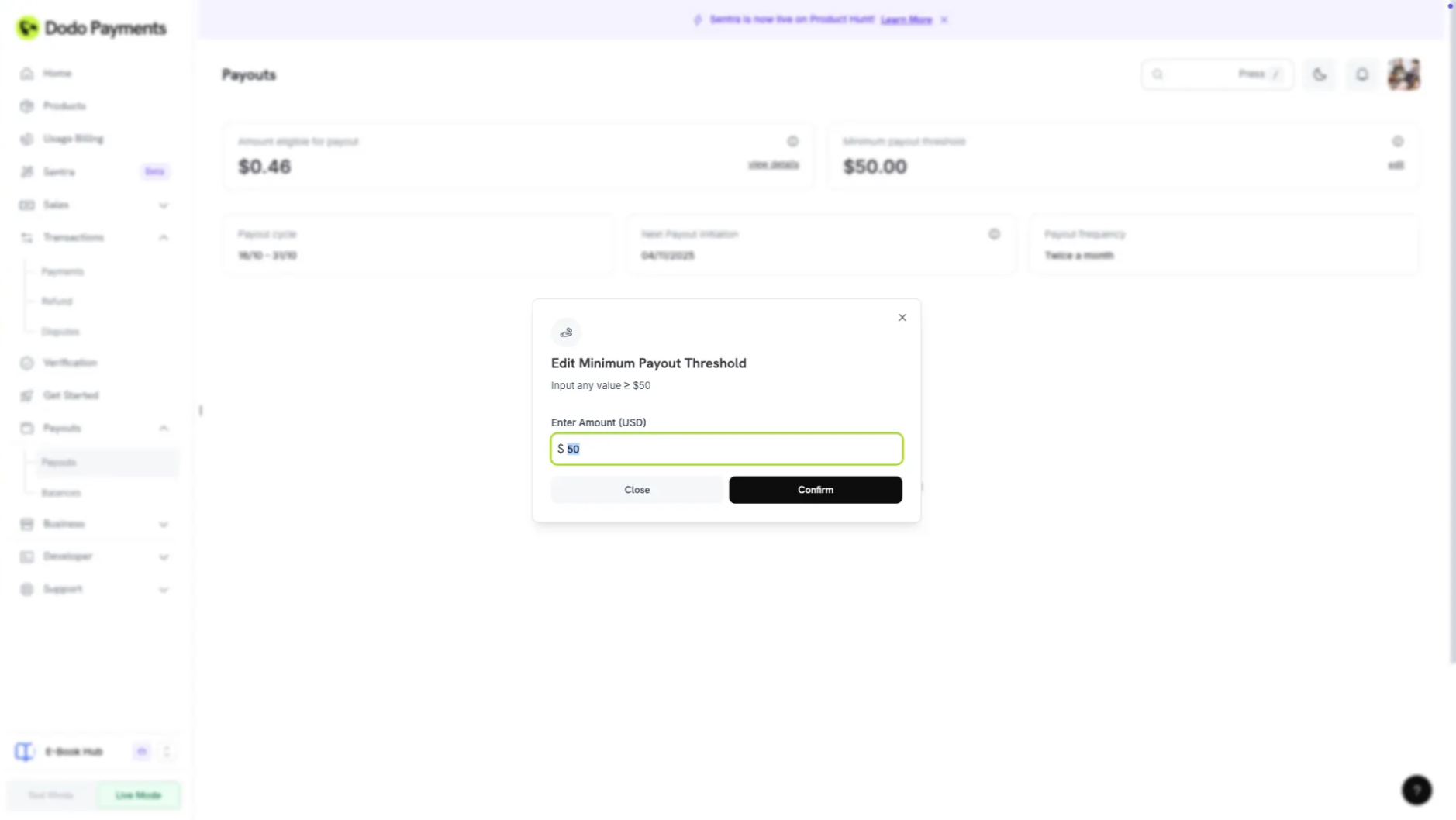 Go to **Payouts → Payouts Page → Minimum Threshold**
Choose edit threshold and enter a number **≥ 50** (e.g., "250")
Click **Confirm** to save your new threshold
You will see the updated amount in the Minimum Payout Threshold field
This feature is only applicable to the USD/EUR/GBP Wallet as of now. The INR wallet will have no changes.
## Payout Deductions
The following amounts are deducted from your sales before payout:
**Taxes:**
All applicable taxes as per the Tax Calculator will be deducted from the sales amount before payout.
**Fees:**
Dodo Payment Fees and Payout Fees will be deducted before sending the payout.
For detailed fee information, check out our [Pricing Page](https://dodopayments.com/pricing).
## Payout Status
Track the progress of your payouts through the following status indicators:
| Status | Description |
| ------------- | ---------------------------------------------------------------------------------------- |
| Not Initiated | Payout due date has not yet arrived hence it has not been initiated |
| In Progress | Payout due date has arrived and payout is in progress |
| On Hold | Payout is put on hold by the Payout Team (by backend until admin dashboard is available) |
| Successful | Payout to the business account is processed successfully |
| Failed | Payout to the business account has failed |
## Payout Invoice
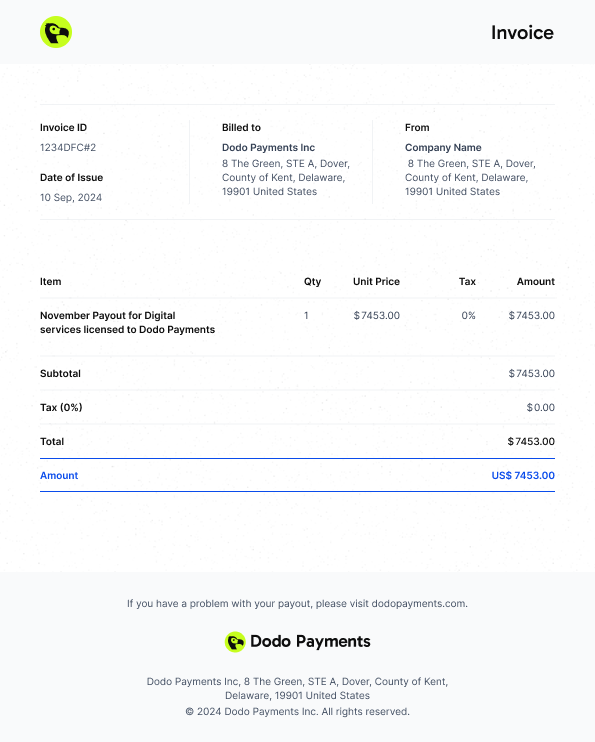
A reverse invoice is generated to indicate the amount paid by Dodo Payments to the business.
### Invoice Structure
Go to **Payouts → Payouts Page → Minimum Threshold**
Choose edit threshold and enter a number **≥ 50** (e.g., "250")
Click **Confirm** to save your new threshold
You will see the updated amount in the Minimum Payout Threshold field
This feature is only applicable to the USD/EUR/GBP Wallet as of now. The INR wallet will have no changes.
## Payout Deductions
The following amounts are deducted from your sales before payout:
**Taxes:**
All applicable taxes as per the Tax Calculator will be deducted from the sales amount before payout.
**Fees:**
Dodo Payment Fees and Payout Fees will be deducted before sending the payout.
For detailed fee information, check out our [Pricing Page](https://dodopayments.com/pricing).
## Payout Status
Track the progress of your payouts through the following status indicators:
| Status | Description |
| ------------- | ---------------------------------------------------------------------------------------- |
| Not Initiated | Payout due date has not yet arrived hence it has not been initiated |
| In Progress | Payout due date has arrived and payout is in progress |
| On Hold | Payout is put on hold by the Payout Team (by backend until admin dashboard is available) |
| Successful | Payout to the business account is processed successfully |
| Failed | Payout to the business account has failed |
## Payout Invoice
A reverse invoice is generated to indicate the amount paid by Dodo Payments to the business.
### Invoice Structure
 ## Important Disclaimer for Indian Businesses
* **INR Payouts to businesses in India are handled independently** and are **not part of the consolidated USD/GBP/EUR payout cycle**.
* Businesses with Indian bank accounts will receive **two separate payouts** per cycle:
* One for INR Wallet (domestic payout)
* One for global currencies (USD/GBP/EUR consolidated payout)
* Each payout will generate a separate invoice and entry in the balance ledger.
Get a comprehensive overview of all your USD, GBP, EUR, and INR wallet balances, transaction ledgers, and payout-related financial activity.
## Important Disclaimer for Indian Businesses
* **INR Payouts to businesses in India are handled independently** and are **not part of the consolidated USD/GBP/EUR payout cycle**.
* Businesses with Indian bank accounts will receive **two separate payouts** per cycle:
* One for INR Wallet (domestic payout)
* One for global currencies (USD/GBP/EUR consolidated payout)
* Each payout will generate a separate invoice and entry in the balance ledger.
Get a comprehensive overview of all your USD, GBP, EUR, and INR wallet balances, transaction ledgers, and payout-related financial activity.