
Overview

The Dodo Payments Checkout SDK provides a seamless way to integrate our payment overlay into your web application. Built with TypeScript and modern web standards, it offers a robust solution for handling payments with real-time event handling and customizable themes.
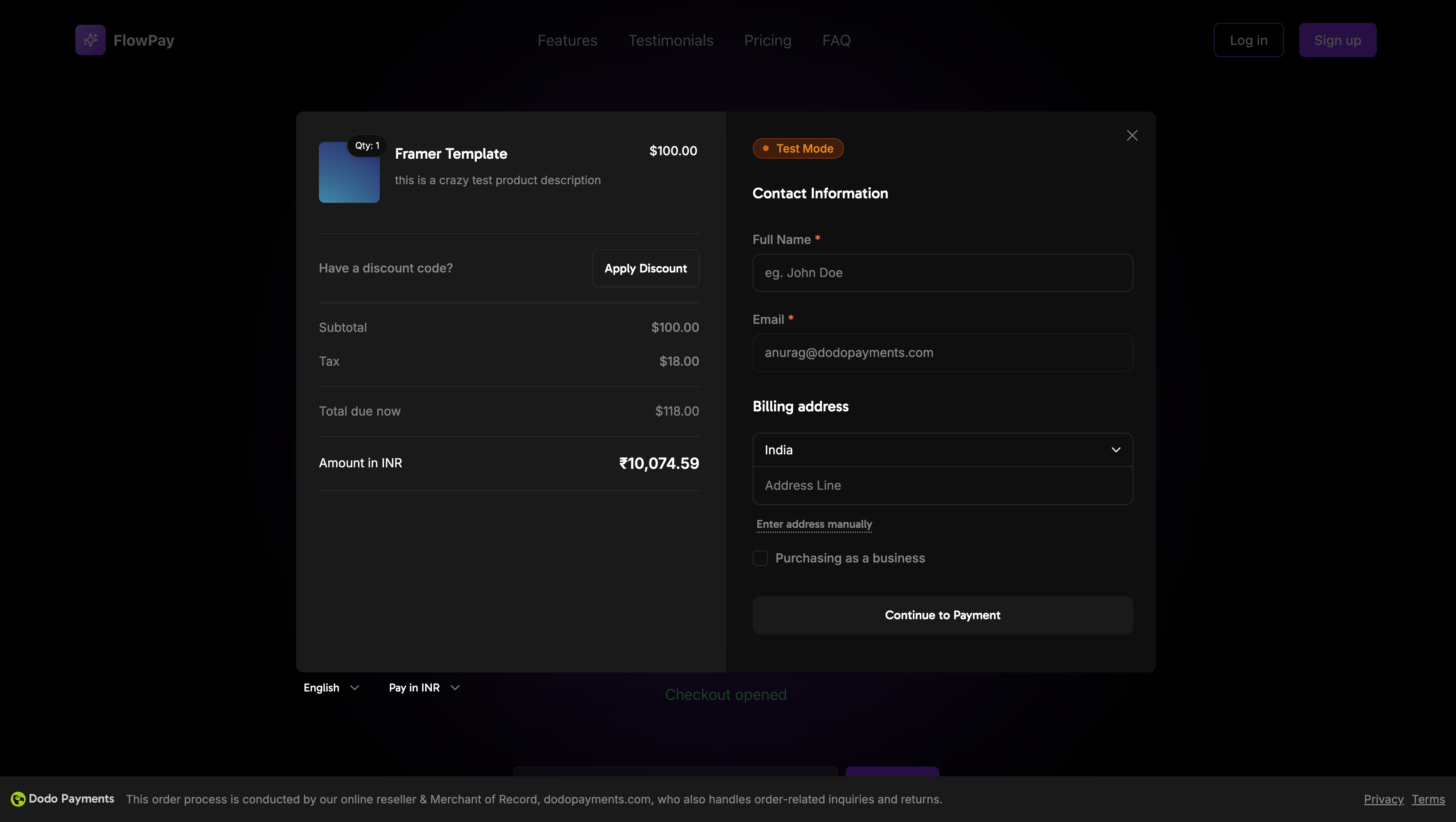
Overlay Checkout Cover Image

Demo

Interactive Demo

See the overlay checkout in action with our live demo.

Quick Start

Get started with the Dodo Payments Checkout SDK in just a few lines of code:
import { DodoPayments } from "dodopayments-checkout";

// Initialize the SDK
DodoPayments.Initialize({
  mode: "test", // 'test' or 'live'
  onEvent: (event) => {
    console.log("Checkout event:", event);
  },
});

// Open checkout
DodoPayments.Checkout.open({
  checkoutUrl: "https://checkout.dodopayments.com/session/cks_123"
});
Get your checkout URL from the create checkout session API.

Step-by-Step Integration Guide

1

Install the SDK

Install the Dodo Payments Checkout SDK using your preferred package manager:
npm install dodopayments-checkout
2

Initialize the SDK

Initialize the SDK in your application, typically in your main component or app entry point:
import { DodoPayments } from "dodopayments-checkout";

DodoPayments.Initialize({
  mode: "test", // Change to 'live' for production
  onEvent: (event) => {
    console.log("Checkout event:", event);
    
    // Handle different events
    switch (event.event_type) {
      case "checkout.opened":
        // Checkout overlay has been opened
        break;
      case "checkout.closed":
        // Checkout has been closed
        break;
      case "checkout.error":
        // Handle errors
        console.error("Checkout error:", event.data?.message);
        break;
    }
  },
});
Always initialize the SDK before attempting to open the checkout. Initialization should happen once when your application loads.
3

Create a Checkout Button Component

Create a component that opens the checkout overlay:
// components/CheckoutButton.tsx
"use client";

import { Button } from "@/components/ui/button";
import { DodoPayments } from "dodopayments-checkout";
import { useEffect, useState } from "react";

export function CheckoutButton() {
  const [isLoading, setIsLoading] = useState(false);

  useEffect(() => {
    // Initialize the SDK
    DodoPayments.Initialize({
      mode: "test",
      onEvent: (event) => {
        switch (event.event_type) {
          case "checkout.opened":
            setIsLoading(false);
            break;
          case "checkout.error":
            setIsLoading(false);
            console.error("Checkout error:", event.data?.message);
            break;
        }
      },
    });
  }, []);

  const handleCheckout = async () => {
    try {
      setIsLoading(true);
      await DodoPayments.Checkout.open({
        checkoutUrl: "https://checkout.dodopayments.com/session/cks_123"
      });
    } catch (error) {
      console.error("Failed to open checkout:", error);
      setIsLoading(false);
    }
  };

  return (
    <Button 
      onClick={handleCheckout}
      disabled={isLoading}
    >
      {isLoading ? "Loading..." : "Checkout Now"}
    </Button>
  );
}
4

Add Checkout to Your Page

Use the checkout button component in your application:
// app/page.tsx
import { CheckoutButton } from "@/components/CheckoutButton";

export default function Home() {
  return (
    <main className="flex min-h-screen flex-col items-center justify-center p-24">
      <h1>Welcome to Our Store</h1>
      <CheckoutButton />
    </main>
  );
}
5

Handle Success and Failure Pages

Create pages to handle checkout redirects:
// app/success/page.tsx
export default function SuccessPage() {
  return (
    <div className="flex min-h-screen flex-col items-center justify-center">
      <h1>Payment Successful!</h1>
      <p>Thank you for your purchase.</p>
    </div>
  );
}

// app/failure/page.tsx
export default function FailurePage() {
  return (
    <div className="flex min-h-screen flex-col items-center justify-center">
      <h1>Payment Failed</h1>
      <p>Please try again or contact support.</p>
    </div>
  );
}
6

Test Your Integration

  1. Start your development server:
npm run dev
  1. Test the checkout flow:
    • Click the checkout button
    • Verify the overlay appears
    • Test the payment flow using test credentials
    • Confirm redirects work correctly
You should see checkout events logged in your browser console.
7

Go Live

When you’re ready for production:
  1. Change the mode to 'live':
DodoPayments.Initialize({
  mode: "live",
  onEvent: (event) => {
    console.log("Checkout event:", event);
  }
});
  1. Update your checkout URLs to use live checkout sessions from your backend
  2. Test the complete flow in production
  3. Monitor events and errors

API Reference

Configuration

Initialize Options

interface InitializeOptions {
  mode: "test" | "live";
  onEvent: (event: CheckoutEvent) => void;
}
OptionTypeRequiredDescription
mode"test" | "live"YesEnvironment mode: 'test' for development, 'live' for production
onEventfunctionYesCallback function for handling checkout events

Checkout Options

interface CheckoutOptions {
  checkoutUrl: string;
}
OptionTypeRequiredDescription
checkoutUrlstringYesCheckout session URL from the create checkout session API

Methods

Open Checkout

Opens the checkout overlay with the specified checkout session URL.
DodoPayments.Checkout.open({
  checkoutUrl: "https://checkout.dodopayments.com/session/cks_123"
});

Close Checkout

Programmatically closes the checkout overlay.
DodoPayments.Checkout.close();

Check Status

Returns whether the checkout overlay is currently open.
const isOpen = DodoPayments.Checkout.isOpen();
// Returns: boolean

Events

The SDK provides real-time events that you can listen to through the onEvent callback:
DodoPayments.Initialize({
  onEvent: (event: CheckoutEvent) => {
    switch (event.event_type) {
      case "checkout.opened":
        // Checkout overlay has been opened
        break;
      case "checkout.payment_page_opened":
        // Payment page has been displayed
        break;
      case "checkout.customer_details_submitted":
        // Customer and billing details submitted
        break;
      case "checkout.closed":
        // Checkout has been closed
        break;
      case "checkout.redirect":
        // Checkout will perform a redirect
        break;
      case "checkout.error":
        // An error occurred
        console.error("Error:", event.data?.message);
        break;
    }
  }
});
Event TypeDescription
checkout.openedCheckout overlay has been opened
checkout.payment_page_openedPayment page has been displayed
checkout.customer_details_submittedCustomer and billing details have been submitted
checkout.closedCheckout overlay has been closed
checkout.redirectCheckout will perform a redirect
checkout.errorAn error occurred during checkout

Implementation Options

Package Manager Installation

Install via npm, yarn, or pnpm as shown in the Step-by-Step Integration Guide.

CDN Implementation

For quick integration without a build step, you can use our CDN:
<!DOCTYPE html>
<html lang="en">
<head>
    <meta charset="UTF-8">
    <meta name="viewport" content="width=device-width, initial-scale=1.0">
    <title>Dodo Payments Checkout</title>
    
    <!-- Load DodoPayments -->
    <script src="https://cdn.jsdelivr.net/npm/dodopayments-checkout@latest/dist/index.js"></script>
    <script>
        // Initialize the SDK
        DodoPaymentsCheckout.DodoPayments.Initialize({
            mode: "test", // Change to 'live' for production
            onEvent: (event) => {
                console.log('Checkout event:', event);
            }
        });
    </script>
</head>
<body>
    <button onclick="openCheckout()">Checkout Now</button>

    <script>
        function openCheckout() {
            DodoPaymentsCheckout.DodoPayments.Checkout.open({
                checkoutUrl: "https://checkout.dodopayments.com/session/cks_123"
            });
        }
    </script>
</body>
</html>

TypeScript Support

The SDK is written in TypeScript and includes comprehensive type definitions. All public APIs are fully typed for better developer experience and IntelliSense support.
import { DodoPayments, CheckoutEvent } from "dodopayments-checkout";

DodoPayments.Initialize({
  mode: "test",
  onEvent: (event: CheckoutEvent) => {
    // event is fully typed
    console.log(event.event_type, event.data);
  },
});

Error Handling

The SDK provides detailed error information through the event system. Always implement proper error handling in your onEvent callback:
DodoPayments.Initialize({
  onEvent: (event: CheckoutEvent) => {
    if (event.event_type === "checkout.error") {
      console.error("Checkout error:", event.data?.message);
      // Handle error appropriately
      // You may want to show a user-friendly error message
      // or retry the checkout process
    }
  }
});
Always handle the checkout.error event to provide a good user experience when errors occur.

Best Practices

  1. Initialize once: Initialize the SDK once when your application loads, not on every checkout attempt
  2. Error handling: Always implement proper error handling in your event callback
  3. Test mode: Use test mode during development and switch to live only when ready for production
  4. Event handling: Handle all relevant events for a complete user experience
  5. Valid URLs: Always use valid checkout URLs from the create checkout session API
  6. TypeScript: Use TypeScript for better type safety and developer experience
  7. Loading states: Show loading states while the checkout is opening to improve UX

Troubleshooting

Possible causes:
  • SDK not initialized before calling open()
  • Invalid checkout URL
  • JavaScript errors in console
  • Network connectivity issues
Solutions:
  • Verify SDK initialization happens before opening checkout
  • Check for console errors
  • Ensure checkout URL is valid and from the create checkout session API
  • Verify network connectivity
Possible causes:
  • Event handler not properly set up
  • JavaScript errors preventing event propagation
  • SDK not initialized correctly
Solutions:
  • Confirm event handler is properly configured in Initialize()
  • Check browser console for JavaScript errors
  • Verify SDK initialization completed successfully
  • Test with a simple event handler first
Possible causes:
  • CSS conflicts with your application styles
  • Theme settings not applied correctly
  • Responsive design issues
Solutions:
  • Check for CSS conflicts in browser DevTools
  • Verify theme settings are correct
  • Test on different screen sizes
  • Ensure no z-index conflicts with overlay

Browser Support

The Dodo Payments Checkout SDK supports the following browsers:
  • Chrome (latest)
  • Firefox (latest)
  • Safari (latest)
  • Edge (latest)
  • IE11+
Apple Pay is not currently supported in the overlay checkout experience. We plan to add support for Apple Pay in a future release.
For more help, visit our Discord community or contact our developer support team.