

This tutorial provides a complete working application with both backend and frontend. The chat app uses Google’s Gemini AI and automatically tracks token usage without any manual counting required.
- Powers AI conversations using Google Gemini (AI SDK)
- Automatically tracks token usage (no manual code)
- Charges customers based on actual token consumption
- Includes a beautiful chat interface
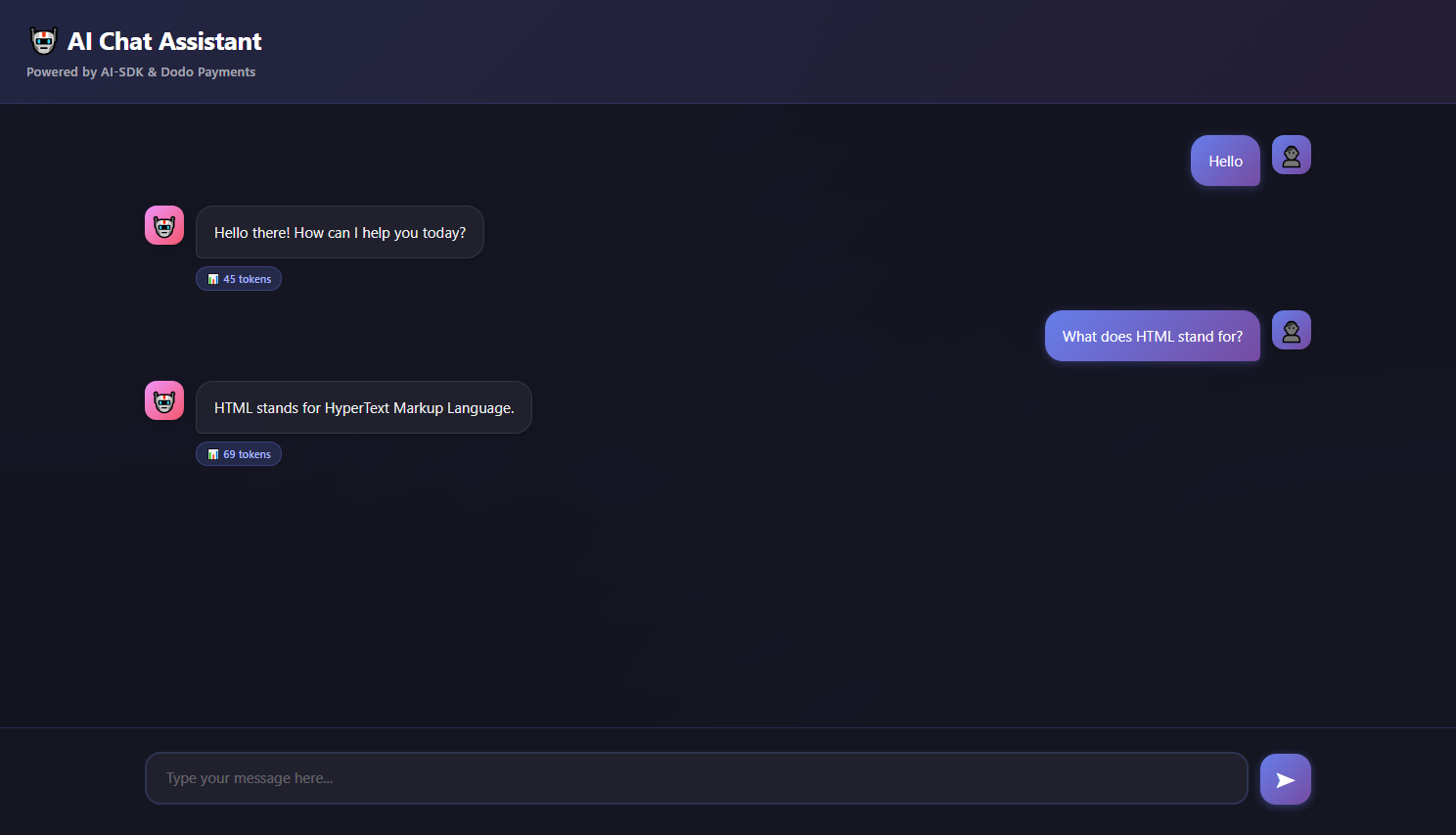
What We’re Building
Let’s start by understanding our AI chat service:- Service: AI-powered chat using Google Gemini (AI SDK)
- Pricing Model: Pay-per-token ($0.01 per 1,000 tokens)
- Free Tier: 10,000 free tokens per customer per month
- Features: Conversation history, automatic token tracking
Before we start, make sure you have:
- A Dodo Payments account
- A Google AI API key (Get one from aistudio)
- Node.js v16+ installed
Step 1: Create Your Usage Meter
We’ll start by creating a meter in your Dodo Payments dashboard that will track AI token usage.1
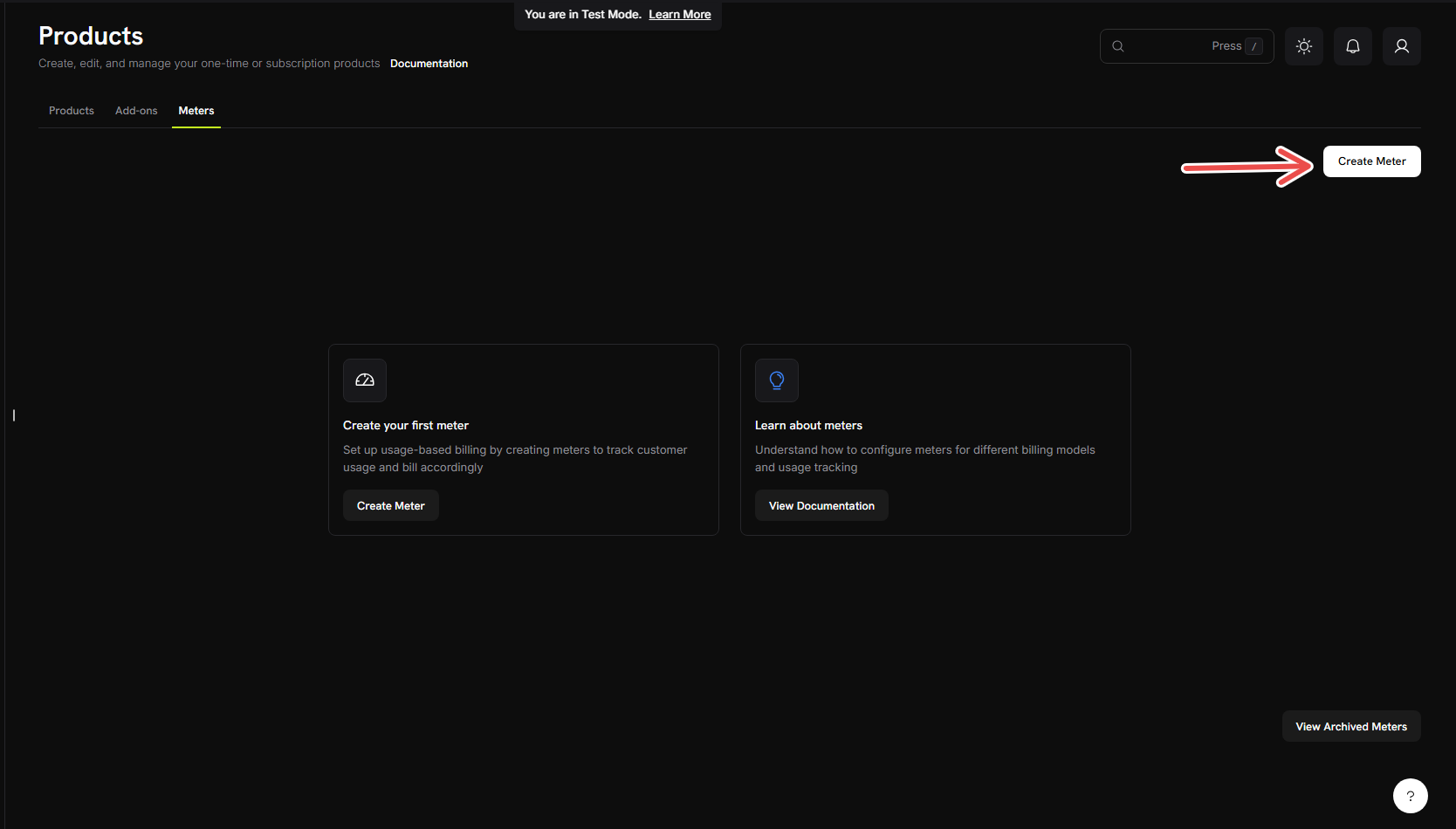
Open the Meters section
- Log into your Dodo Payments dashboard
- Click on Products in the left sidebar
- Click on Meters
- Click the Create Meter button
2
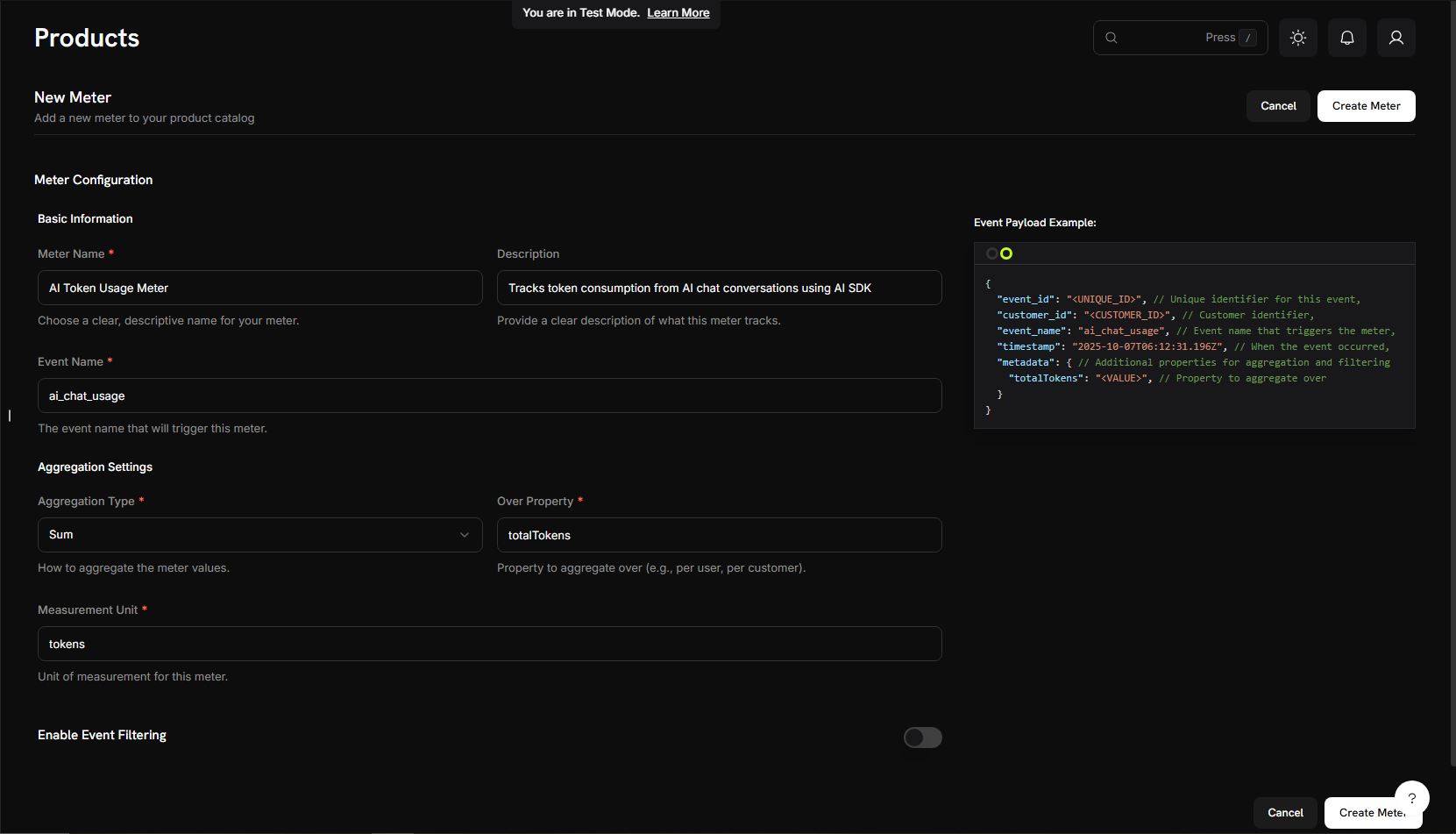
Fill in the basic meter information
Now we’ll enter the specific details for our AI chat service:Meter Name →
AI Token Usage MeterDescription → Tracks token consumption from AI chat conversations using AI SDKEvent Name → ai_chat_usage3
Configure how we count tokens
Set up the aggregation (how the meter counts our events):Aggregation Type: Select Sum from the dropdownAggregate Over: Type →
totalTokensMeasurement Unit: Type → tokensWe’re using “Sum” because we want to add up all tokens consumed across multiple chat messages. The SDK automatically sends
totalTokens in each event.4
Create your meter
- Double-check all your settings match the values above
- Click Create Meter
Meter created! Your “AI Token Usage Meter” is now ready to start counting tokens. Next, we’ll connect it to a billing product.
Step 2: Get Your API Keys
Before we build the app, let’s gather the API keys we’ll need.1
Get Dodo Payments API Key
- In your Dodo Payments dashboard, go to Developers → API Keys
- Click Create API Key
- Copy the API key - it will look like
test_abc123...
Save this API key - we’ll add it to our
.env file later.2
Get Google AI API Key
- Visit aistudio.google.com
- Click Get API Key
- Create a new API key or use an existing one
- Copy the key
Keep this key safe - we’ll also add it to our
.env file.Step 3: Create Your Billing Product
Now we need to create a product that defines our pricing ($0.01 per 1,000 tokens with 10,000 free tokens). This connects our meter to actual billing.1
Navigate to Products
- In your Dodo Payments dashboard, click Products in the left sidebar
- Click Create Product
- Select Usage-Based as the product type
2
Enter product details
Fill in the required details:Product Name: →
AI Chat ServiceDescription: → AI-powered chat service with automatic token-based billingProduct Image: Upload a relevant imageThese will appear on customer invoices, so make them clear and professional.
3
Connect your meter
Before connecting your meter, make sure you have selected Usage Based Billing as the price type for your product.Additionally, set the Fixed Price to
0 to ensure customers are only charged based on their usage, with no base fee.Now, link the meter you just created:- Scroll down to the Associated Meter section
- Click Add Meters
- From the dropdown, select “AI Token Usage Meter” (the one you created earlier)
- Confirm that it appears in your product configuration
Your meter is now successfully connected to this product.
4
Set your pricing
Here’s where we define our business model:Price Per Unit: Enter → 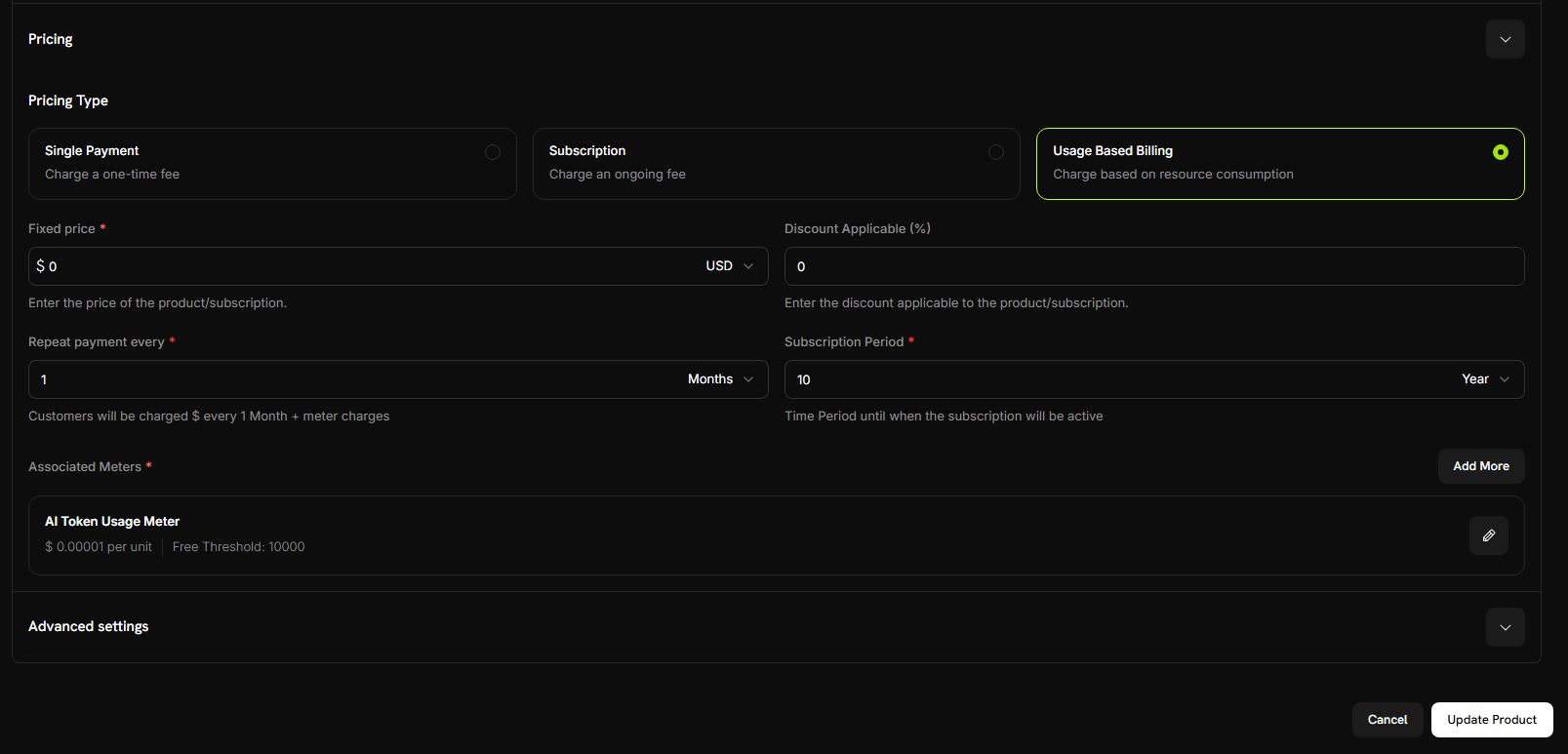
0.00001 (this is 0.00001 per token)Free Threshold: Enter → 10000 (customers get 10,000 free tokens per month)5
Save your product
- Review all your settings:
- Name: AI Chat Service
- Meter: AI Token Usage Meter
- Price: $0.01 per 1,000 tokens
- Free tier: 10,000 tokens
- Click Save Changes
Product created! Your billing is now configured. Customers will automatically be charged based on their token usage.
Step 4: Make a Test Purchase
Before we start building the app, let’s create a test customer by making a purchase.1
Get your payment link
- In your Dodo Payments dashboard, go to Products
- Find your “AI Chat Service” product
- Click the Share button next to your product
- Copy the payment link that appears
2
Complete a test purchase
- Open the payment link in a new browser tab
- Enter test payment details and complete purchase
After successful payment, you’ll have a customer ID that we’ll use in our application code.
3
Find your customer ID
- Go back to your Dodo Payments dashboard
- Navigate to Sales -> Customers in the left sidebar
- Find the customer you just created (with the test email)
- Copy the customer ID - it will look like
cus_123
Save this customer ID - we’ll use it when testing our chat application.
Step 5: Build the Chat Application
Now we have our billing setup complete and a test customer created. Let’s build the AI chat application with automatic token tracking.1
Set up your project
Create a new directory and initialize the project:
2
Install dependencies
Install the packages we need:
3
Configure TypeScript
Create Update
tsconfig.json:tsconfig.json
package.json to add the module type and scripts:package.json
4
Create project structure
Create the folders and files:
5
Set up environment variables
Create a Replace the placeholder values with your actual API keys from Step 2.
.env file in your project root:.env
6
Create the backend server
Create
src/server.ts and copy this complete server code:Step 6: Add the Chat Interface
Now let’s add a beautiful chat interface with full conversation history! Createpublic/index.html:
public/index.html
Step 7: Test Your Chat Application
Time to test our AI chat app and see the billing in action! Let’s make sure everything works end-to-end.1
Start the server
First, make sure everything is set up:You should see:
- Verify your
.envfile has all the API keys from Step 2 - Start the development server:
Server is running! Time to chat.
2
Open the chat interface
- Open your browser
- Navigate to
http://localhost:3000 - You should see the beautiful chat interface
Make sure you update the
CUSTOMER_ID in server.ts with your actual test customer ID from Step 4.3
Have your first conversation
Let’s test it out! Try these messages:
- “What is artificial intelligence?”
- “How does machine learning work?”
- “Can you explain neural networks?”
If you see the AI responding and token counts appearing, your app is working!
4
Check your Dodo Payments dashboard
Now let’s verify the events are being received: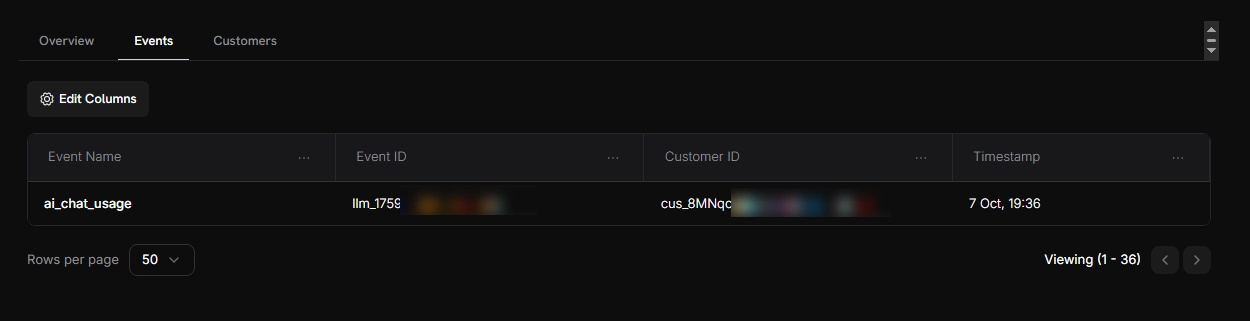
- Open your Dodo Payments dashboard
- Go to Usage Billing → AI Token Usage Meter
- Click on the Events tab
- You should see your chat events listed
- Event names:
ai_chat_usage - Customer ID: Your test customer id
You should see one event for each message you sent!
5
Verify token counting
Let’s send some more messages and check if the token aggregation is working: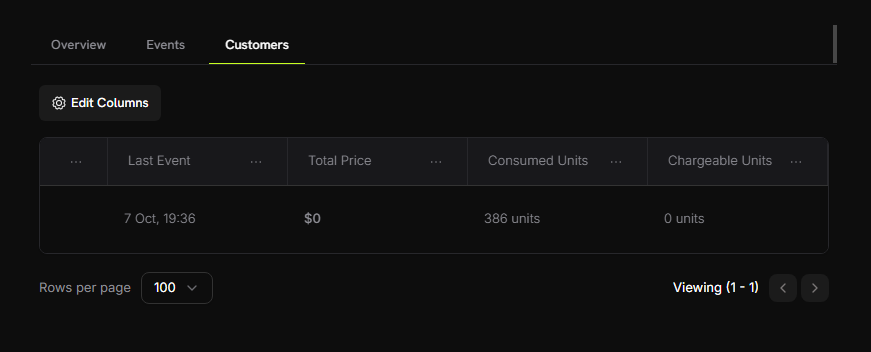
- In your meter, go to the Customers tab
- Find your test customer
- Check the “Consumed Units” column - it should show the total tokens used
The meter is summing up all
totalTokens values automatically!6
Test the free tier
Let’s use enough tokens to exceed the free tier: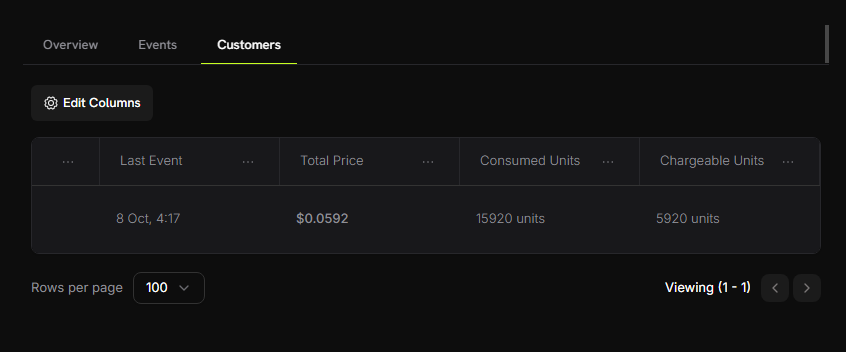
- Have several more conversations (aim for ~15,000+ total tokens)
- Check your Customers tab in meter dashboard again
- You should now see:
- Consumed Units: 15,000+ tokens
- Chargeable Units: 5,000 (10,000 free tokens applied)
- Total Price: ~$0.05
Success! Your usage-based billing is working perfectly. Customers will be automatically charged based on their actual token consumption.
Troubleshooting
Common issues and their solutions:Events not appearing in dashboard
Events not appearing in dashboard
Possible causes:
- Event name doesn’t match meter configuration exactly
- Customer ID doesn’t exist in your account
- API key is invalid or expired
- Network connectivity issues
- Verify event name matches meter configuration exactly (case-sensitive:
ai_chat_usage) - Check that customer ID exists in Dodo Payments dashboard
- Test API key with a simple API call
- Check server logs for error messages
Token counts showing zero
Token counts showing zero
Possible causes:
- Model not returning usage information
- Incorrect SDK version
- Test if model returns usage:
- Update to latest Blueprints SDK:
npm install @dodopayments/ingestion-blueprints@latest
API key invalid error
API key invalid error
Possible causes:
- Wrong API key for environment
- Extra spaces or quotes in
.envfile
- Ensure test key starts with
test_, live key starts withlive_ - Remove any quotes around keys in
.envfile - Generate a new key if needed
Congratulations! You Built an AI Chat App
You now have a fully functional AI chat application with automatic token usage tracking and billing powered by Dodo Payments. 🎉Learn More
LLM Blueprint
Learn more about LLM Ingestion Blueprint
Ingestion Blueprints SDK
Check out the GitHub repository for more examples
Join Community
Get help and share your projects on Discord