

Introduction
Automatically send transactional emails for payment confirmations, subscription updates, and important notifications using SendGrid. Trigger personalized emails based on payment events with dynamic content and professional templates.This integration requires a SendGrid API Key with Mail Send permissions.
Getting Started
1
Open the Webhook Section
In your Dodo Payments dashboard, navigate to Webhooks → + Add Endpoint and expand the integrations dropdown.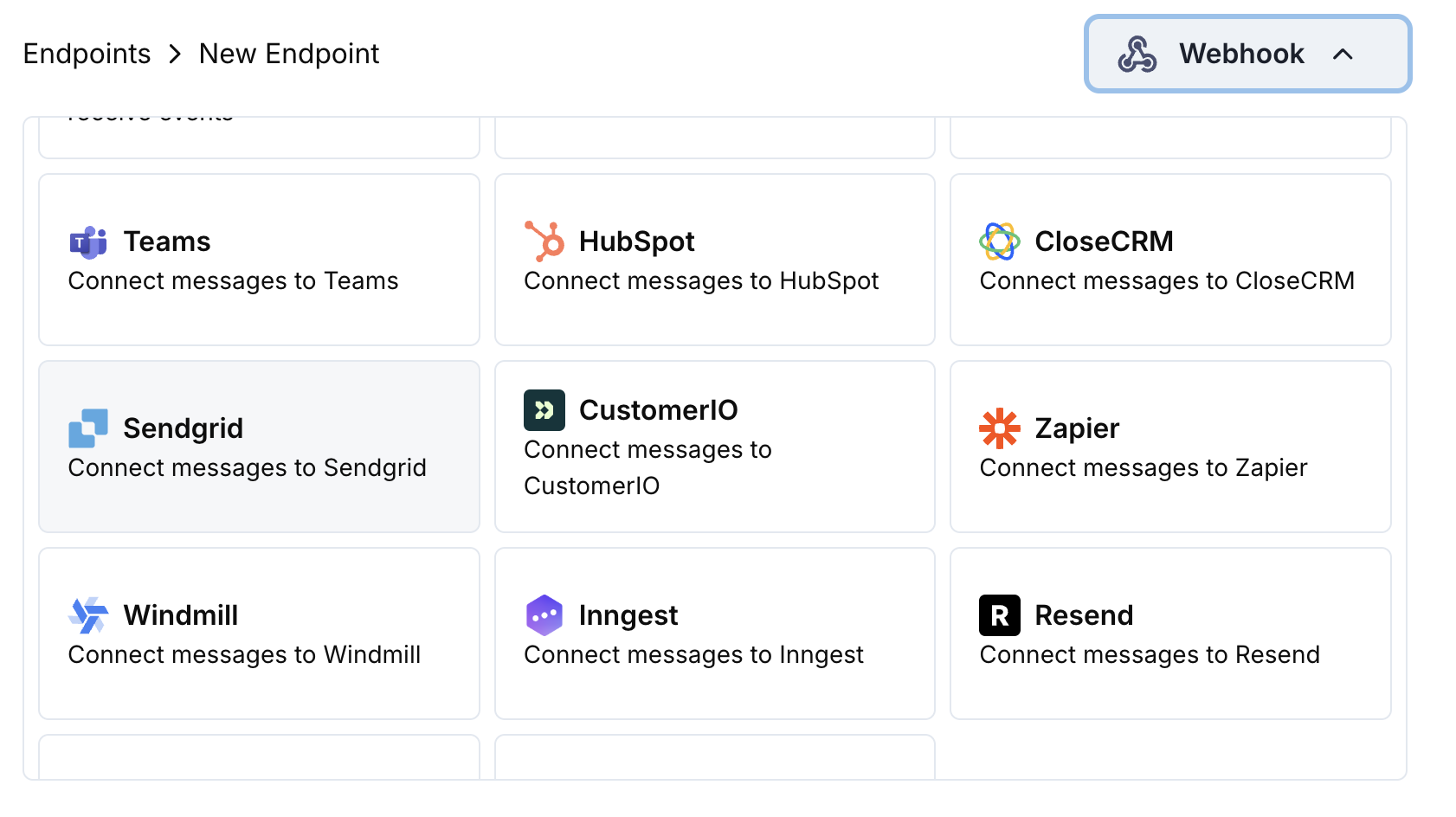
2
Select SendGrid
Choose the SendGrid integration card.
3
Enter API Key
Provide your SendGrid API Key in the configuration.
4
Configure Transformation
Edit the transformation code to format emails for SendGrid’s Mail Send API.
5
Test & Create
Test with sample payloads and click Create to activate the email sending.
6
Done!
🎉 Payment events will now automatically trigger transactional emails via SendGrid.
Transformation Code Examples
Payment Confirmation Email
payment_confirmation.js
Subscription Welcome Email
subscription_welcome.js
Payment Failure Notification
payment_failure.js
Tips
- Use SendGrid dynamic templates for personalized content
- Include relevant payment data in template variables
- Set proper from addresses and sender names
- Use template IDs for consistent email formatting
- Include unsubscribe links for compliance
Troubleshooting
Emails not being sent
Emails not being sent
- Verify API Key has Mail Send permissions
- Check that template IDs are valid and active
- Ensure recipient email addresses are valid
- Review SendGrid sending limits and quotas
Transformation errors
Transformation errors
- Validate JSON structure matches SendGrid API format
- Check that all required fields are present
- Ensure template data variables are properly formatted
- Verify from email addresses are verified in SendGrid